Showing posts with label account. Show all posts

Saturday, July 13, 2013

How To Create Tweeter Reading List

tweeter is great but there is one thing that makes it annoying at times; that is seeing other tweets that you don't really want to see especially one that can be too sexual and too vocal in nature.

Not so many people know that you can actually create a reading list. That is, a list of followers or those you are following that you want to read their tweets often.

This is particularly useful especially of you like reading tweets from a particular set of people due to the kind of tweets they post.

To achieve this, follow the guide below step by step.


Procedures

1. log into your tweeter account on your computer

2. Click on "Me"


3. Click on List on the left side of the pane


4. Click on Create List
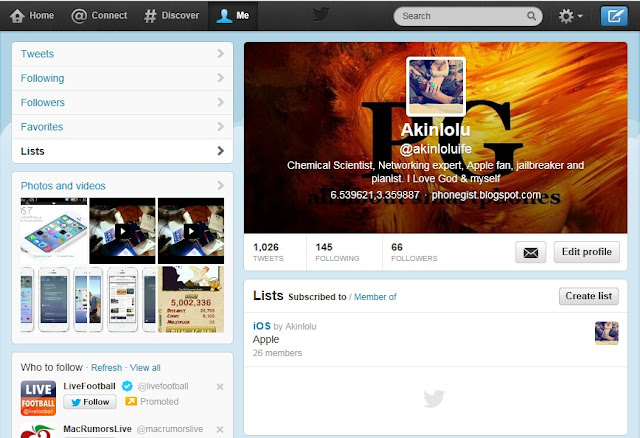
 

5.  Type in your List name and give it a description. After doing this click on Save List


6. After creating List, it will appear on the left side of the Window. In my case, I made My Follower the name of the List.


7. Click on Followers or Following to select those you want to add to that newly created List. You can quickly do this by clicking link as highlighted in the image.


8. Now, start selecting those you want by clicking on the avartar icon next to "following" as shown in the image below.
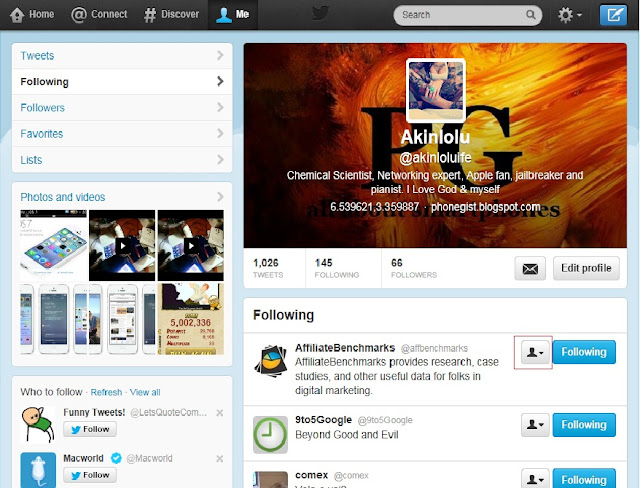


9. A drop down menu would appear and then you will select "Add or Remove from List"

10. Select the newly created list and your Follower or Following would be in the list


11. Now, you can always see the tweets of those persons you have selected by going to your list anytime you click on "Me"

12. With this, you can focus on those tweets you really want to read from those you follow or those that are following you.

I hope this post is useful to someone.


Wednesday, June 5, 2013

The new Gmail for Android smartphones

Google have rolled out new Gmail app for Android smartphones with easy access and messages are now tagged with alphabets for easy identifications of mails and groupings as we pointed out in our recent post last week.


The first character of the Message sender or subject is boldly placed in a colored box for fast identification of the sender. This makes it easier to recognize and even group messages from the same sender together. Check out the images below for you consideration.

This color coding effect is wise, cool and well done. The mail is less loud and more soothing.

Also, swiping from right to left puts the message in Archive. If you don't want the swipe to archive function, you can disable it by going to Settings, General Settings and uncheck the Swipe to archive function.


Furthermore, by default, the Delete icon isn't present in the options when reading a mail. To enable this, go to Settings, tap General settings, tap Archive & delete actions, check the options you want when presented with  the menu. The Delete button would be present.


Finally, you can enable action confirmations at the General Settings option. This you would see when you scroll down giving you choice to Confirm before deleting, Confirm before archiving and Confirm before sending a message. You can also configure the Label settings as shown in the images below. This would give you the choice of using any label you please to identify a message.


If you haven't gotten yours yet, i suggest you go to Play Store or click the download link below to update your Gmail app to the latest version and enjoy the best, simple and effective mail yet. 
I believe this is a work in progress and would even get better in the following updates to address minor issues. However, as of now, this new Gmail is accepted and we are loving it already.

Do tell us what you think of this new update. Do you find it better and actually doing what its suppose to do faster? 

Download link